Developing Content
Maintenance Unit (MU)
When new, from-scratch content is developed within a Genesis instance, a new Maintenance Unit should be created for each page/task that it corresponds to – this is considered a Genesis development best practice. Please refer to section Building Navigation in Genesis Designer to understand what is meant by a page/task. Further, a strict naming convention must be used when said MU is developed as described below:
XCP_ApplicationGroup_PageDescription- XCP = XCP (eXtensible, Custom, Page) is the standard prefix for all custom pages and helps to identify what MUs have been created by the developer(s). It is important to note that this is a strict naming convention and no other prefixes should be used when creating MUs. This prefix ensures that when Genesis is upgraded, these MUs are bypassed and not changed or deleted.
- ApplicationGroup = The Application Group that the page (dashboard) will be added to. For example, and building on the solution,
XCP_Homewould indicate a page(s) that will be added to the Home Application group. - PageDescription = Page Description and represents the purpose of the page. Continuing the Application Group example, the complete name for the Dashboard Maintenance Unit would be
XCP_Home_Close, with Close indicating the Financial Reporting reports are relevant for Close.
Artifacts such as components, data adapters, assemblies, etc., for the individual page should be developed within the page's MU. This approach simplifies development by having all artifacts within the MU, minimizing clicks and enabling migration of content developed within the MU, but extracting just the MU if applicable.
Apart from the MU naming convention, which is an SPK development requirement, the naming convention described in the remainder of this guide serve as an example of a best practice. Alternatively, development organizations may create a naming convention that is usable and understandable by the team, adhered to, and documented so that adherence is not a burden.
Components
OneStream components provide the core functionality incorporated into a Dashboard, and the following outlines a naming convention and guidance on property configuration. The description property for the component describes its use case and purpose, providing a self-documenting mechanism.
| Component | Prefix | Text | Tool Tip |
|---|---|---|---|
| BI Viewer | biv_[MU]_[Name] | N/A | N/A |
| Book Viewer | bkv_[MU]_[Name] | N/A | N/A |
| Button | btn_[MU]_[Name] | Text to show with the Button | Informative text of what occurs when the Button is clicked |
| Chart (Advanced) | chtn_[MU]_[Name] | Text to show with the Chart | Informative text on how to interact with the Chart |
| Chart (Basic)* | cht_[MU]_[Name] | Text to show with the Chart | Informative text on how to interact with the Chart |
| Check Box | chtn_[MU]_[Name] | Text to show with the Check box | Informative text about the Check Box |
| Combo Box | chtn_[MU]_[Name] | Text to show with the Combo box | Informative text about the Combo Box |
| Cube View | cv_[MU]_[Name] | N/A | N/A |
| Data Explorer | dex_[MU]_[Name] | Text to show with Data Explorer | Informative text on how to interact with Data Explorer |
| Data Explorer Report | der_[MU]_[Name] | Text to show with Data Explorer Report | Informative text on how to interact with Data Explorer Report |
| Date Selector | das_[MU]_[Name] | Text to show with the Date Selector | Informative text on how to interact with the Date Selector |
| Dynamic Grid View | dgrd_[MU]_[Name] | Text “Header” displayed with the Dynamic Grid View | N/A |
| Embedded Dashboard | emd_[MU]_[Name] | N/A | N/A |
| File Viewer | fvw_[MU]_[Name] | N/A | N/A |
| Filter Editor | fed_[MU]_[Name] | N/A | N/A |
| Gantt View | gtv_[MU]_[Name] | N/A | N/A |
| Grid View | grd_[MU]_[Name] | N/A | Informative text on how to interact with the Chart |
| Image | img_[MU]_[Name] | N/A | Informative text on how to interact with the Image |
| Label | lbl_[MU]_[Name] | Text shown on the Label | Informative text on how to interact with the Label |
| Large Data Pivot Grid | lpg_[MU]_[Name] | N/A | N/A |
| List Box | lbx_[MU]_[Name] | Text to show with the List Box | Informative text on how to interact with the List Box |
| Logo | logo_[MU]_[Name] | N/A | Informative text on how to interact with the Logo |
| Map | map_[MU]_[Name] | N/A | N/A |
| Member Tree* | mbt_[MU]_[Name] | Text shown on the Member Tree | Informative text on how to interact with the Member Tree |
| Menu | menu_[MU]_[Name] | Text to show with the Menu | Informative text on how to interact with the Menu |
| Password Box* | pbx_[MU]_[Name] | Text shown with the Password Box | Informative text on how to interact with the Password Box |
| Pivot Grid | piv_[MU]_[Name] | Text to show with the Pivot Grid | Informative text on how to interact with the Pivot Grid |
| Radio Button Group | rbg_[MU]_[Name] | Text shown with the Radio Button Group | Informative text on how to interact with the Radio Button Group |
| Report | rpt_[MU]_[Name] | Text shown with the Report | Informative text on how to interact with the Report |
| Sankey Diagram* | san_[MU]_[Name] | N/A | N/A |
| Spreadsheet | ss_[MU]_[Name] | Text to show with the Spreadsheet | Informative text on how to interact with the Spreadsheet |
| SQL Table Editor | ste_[MU]_[Name] | N/A | N/A |
| State Indicator* | sid_[MU]_[Name] | Text to show with the State Indicator | Informative text on how to interact with the State Indicator |
| Supplied Parameter | spp_[MU]_[Name] | Text to show with the Supplied Parameter | Informative text on how to interact with the Supplied Parameter |
| Text Box | txb_[MU]_[Name] | Text shown with the Text Box | Informative text on how to interact with the Text Box |
| Text Editor | txd_[MU]_[Name] | Text to show with Text Editor | Informative text on how to interact with the Text Editor |
| Text Viewer | txv_[MU]_[Name] | Text to show with the Text Viewer | Informative text on how to interact with the Text Viewer |
| Tree View | trv_[MU]_[Name] | N/A | N/A |
| Web Content | web_[MU]_[Name] | Text to show with the Web Content | Informative text on how to interact with the Web Content |
* Windows App only
Data Adapters
A common prefix for Data Adapters is da, and the description would describe the use case and purpose of the component. A complete data adapter example would be da_[MU]_[Name].
Parameters
A common prefix for Parameters is param, and the description would describe the use case and purpose of the component. A complete parameters example would be param_[MU]_[Name]. The User Prompt would be Select Purpose of the Parameter: for example, Select Entity.
Files
Files are the exception to the convention of prefixing, as the name includes the FileType. The description would describe the use case and purpose of the component. A complete file example would be [Name]_[MU].[FileType].
Assemblies
Each Maintenance Unit can have one assembly, which consists of one or more assembly files. The naming convention for the assembly should be based on the Maintenance Unit name, and it is recommended to use the Page Definition of the Maintenance Unit. For example, a Maintenance Unit with a PageDefinition of FPRT_Home_Close would have an assembly of FPRT_Home_Close. The Assembly and the Service Factory assembly file, “Workspace Assembly Service”, is configured in the properties of the Maintenance Unit. Continuing with the PageDefinition example, the Workspace Assembly Service configuration would be FPRT_Home_Close.MUAssemblyFactory and MUAssemblyFactory is the naming convention for the class that implements the Interface IWsAssemblyServiceFactory.
The next table provides a comprehensive recommended structure of the assembly files. Folders for the assembly file types, including AssemblyFactory (ServiceFactory), Services, and BusinessRules, are created and recommended for organizational purposes. Each file, regardless of type, is prefixed with Wsas (Workspace Assembly Service) and a name that relates to the purposes of the assembly file. For example, the Services “Service Type” assembly file includes the Service Type (Component, Dashboard, etc.), and for Business Rules, the Business Rule Type (Cube View Extender, Dashboard DataSet, etc.).
| CSharp (C#) example | VB.Net (VB) example |
|---|---|
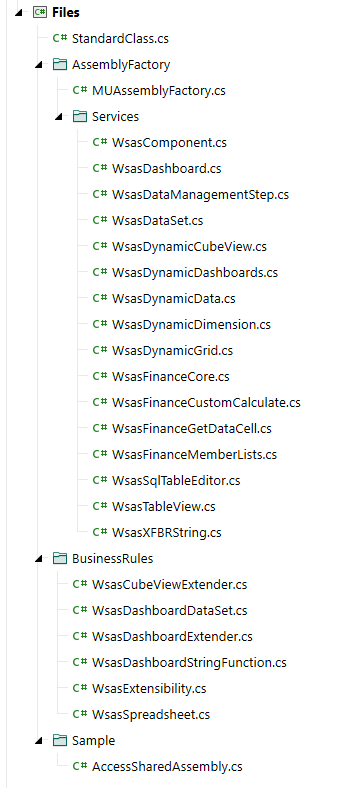 | 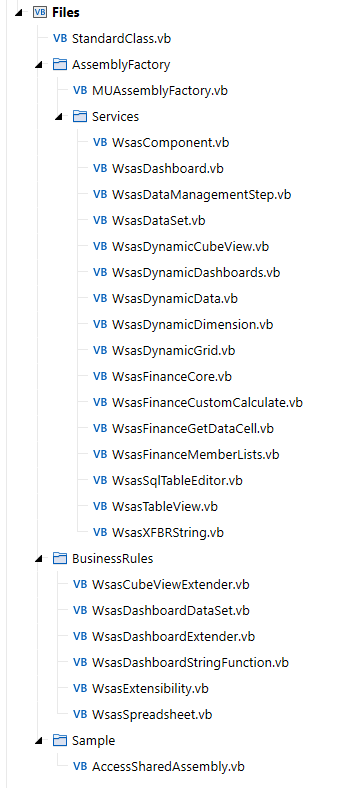 |
By implementing this naming convention, the name of the assembly folder accurately describes its purpose, while the folder structure provides clear organization.