Introduction to Application Groups
Each Genesis instance includes four standard Application Groups: Home, Admin, Config, and Help. These groups can be renamed to fit business processes (for example, Planning or Reporting), but by default, they provide a consistent framework for designing business processes. In addition to renaming, each Application Group except for Home can be secured by updating the Access Group or hidden by updating the “Hide property” from No to Yes. The guide to configuring each application group can be found in the sections immediately following this.
Guidance: Renaming the application group to reflect business processes is best practice. However, the renames will only be reflected in the front end. You must not change the names in the workspace.
Building Navigation in Genesis Designer
Navigation is created and managed through Genesis Designer using three elements: Application Groups, Navigation Groups, and Pages. The following sections are relevant to all Application Groups.
Application Groups (Top-Level)
- Define main user flows such as Home, Admin, Config, Help (can be renamed to Planning, Reporting, etc.).
- To rename: select → Edit → update Tooltip Text → Save.
- Apply security groups to control visibility.
- Home is always visible and cannot be hidden; however, Navigation Groups and Pages created within a Navigation Group can be secured.
Renaming an application group within Genesis Designer does not change the Maintenance Unit for the application group, which will retain the default names of Pnavs_Home, Pnavs_Admin, Pnavs_Config, and Pnavs_Help. Also, adding content Pnavs_* maintenance unit is not supported.
Navigation Groups
- Organize related processes (e.g., Revenue, Expenses).
- Navigation Groups can be added or removed anytime during development.
- Recommended: Establish a basic structure early for rapid prototyping.
Pages (i.e. Tasks)
- Represent individual content screens.
- Each Page is mapped one-to-one with a dashboard or Content Block.
- Add via New Page, name, then Save.
- Reorder or set defaults using Reorder List and Set as Default.
- Provide the capability to configure Access Groups and security settings enabled by the solution.
Navigation structure example:
Navigation Groups - Left-hand pane: Major application categories (e.g., Revenue, Expenses, Event Planning)
Pages - Top tabs: Individual tasks within the selected category (e.g., Unit Revenue, Services Revenue, Third Party, Returns)
This design enables users to navigate across processes and their related tasks with minimal steps.
Linking Content to Pages
Each Page must be linked to the relevant content. There are two methods: - Link an existing dashboard from a Shared Workspace - Inject a Content Block from the Content Library
Steps:
- Select the Page icon

- Click Link
 or Inject
  icon
icon - Choose the desired content
- Click Save
Use Preview mode to validate functionality. If errors occur, disable Preview and troubleshoot.
Styling the Menu
You can customize the appearance of the navigation through the Colors and Styles settings.
Colors
- Access via the Colors page
- Modify colors for:
- Home Box
- Navigation Bar
- Page Bar
- Title Bar
- Images
- Apply and preview existing sets or create new ones
Styles
- Access via the Styles page
- Configure layout options such as:
- Navigation bar width
- Button height
- Selected-state indicators (highlight or underline)
- Tab widths
- Indicator size and thickness
Preview and Finalize
- Use Preview mode throughout the build process
- Validate:
- Navigation structure
- Security settings
- Linked content
- Test with multiple user roles to confirm access and visibility
Application Groups - Explained
An Application Group is a configurable group that represents the breakdown of a user flow. The Application Groups available are Home, Admin, Config, and Help.
The Home Application Group serves as the central, end-user navigation hub for your application and is accessible to Everyone and cannot be hidden. The Admin, Config, and Help Application Groups can be configured to a specific Access Group by updating the default setting of Everyone to the appropriate security group or hidden by setting the Visibility Settings: Hide to True.
Home Application Group
The Home Application Group serves as the central end-user navigation hub for your application. It provides a structured interface that enables users to seamlessly transition between high-level reporting and process-driven tasks. While a best practice example framework is shown below, the exact navigation strategy should align with requirements.
Example Structure
Many CPM-centric applications or processes share a similar navigation pattern. This structure allows users to flow through processes and tasks in a familiar interface. It contains both reporting (e.g. dashboards, cube views, etc.) and processing (e.g. setting drivers, data input, calculation activities).
Below is an example navigation path showing the main navigation groups (Overview, Process 1, etc.) within the Home application group, along with the pages inside each group:
| Navigation Group | Page 1 | Page 2 | Page … | Page n |
|---|---|---|---|---|
| Overview | Dashboard 1 | Dashboard 2 | Dashboard .. | Dashboard n |
| Process 1 | Task 1 | Task 2 | Task .. | Task n |
| Process 2 | Task 1 | Task 2 | Task .. | Task n |
| ... | .. | .. | .. | .. |
| Process n | Task 1 | Task 2 | Task .. | Task n |
Based upon the table above, the following is an example of a navigation flow built within the Home application group:
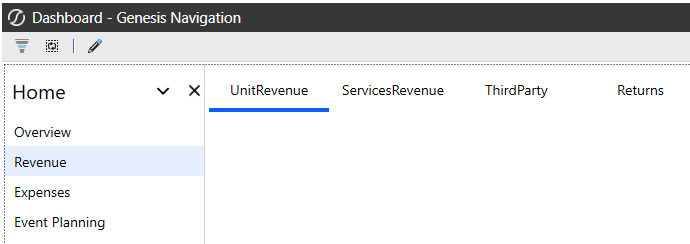
Admin Application Group
The Admin Application Group in OneStream Genesis provides a secure environment where administrators monitor and maintain critical and ongoing application aspects. Unlike the Home group, which is designed for the majority of users, the Admin group is typically restricted to individuals responsible for administrative tasks.
Configuring the Admin Application Group ensures:
- A structured, user-friendly navigation for administrative tasks.
- Proper security controls, allowing only authorized users to access setup features.
- A central hub for recurring maintenance activities, including governance tasks.
When thoughtfully designed, the Admin Page can streamline administrative tasks by serving as the hub for administrative tasks. The following framework is provided as an example; the exact navigation strategy should align with the requirements.
Example Structure
A suggested Admin navigation path might include high-level categories such as tasks, data, and reporting. Within each category, related tasks can be organized as pages.
| Navigation Group | Page 1 | Page 2 | Page … | Page n |
|---|---|---|---|---|
| Tasks | Tasks1 | Tasks2 | … | n |
| Governance | Gov1 | Gov2 | … | n |
Based upon the table above, the following is an example of a navigation flow built within the Admin application group:

Config Application Group
The Config Application Group in OneStream Genesis serves as the foundation for setting up solutions. As the name implies, Config focuses on the initial setup of the solution, typically one-time activities. This group provides a central location for authorized users to manage solution settings while providing a separation of duties that are administrative in nature that deal with application maintenance vs configuration.
Typical items for the Config group included:
- App installer and uninstaller
- License Page
- Application upgrade utility
- Maintenance scripts
Example Structure
A suggested Config navigation path might include high-level categories such as tasks, data, and reporting. Within each category, related tasks can be organized as pages
| Navigation Group | Page 1 | Page 2 | Page … | Page n |
|---|---|---|---|---|
| Settings | Settings1 | Settings2 | N | n |
| Data Adapters | My Datasets | Dataset Manager |
Based upon the table above, the following is an example of a navigation flow built within the Config application group:

Help Page Group
The Help Application Group in OneStream Genesis serves as the foundation for application, solution, and external help within OneStream Genesis.
Properly configuring this group ensures:
- A central location for self-service assistance across user types and processes
Example Structure
A suggested Help navigation path might include high-level categories such as Help Desk, Solution Guides, and Desktop Procedures. Within each category, related tasks can be organized as pages
| Navigation Group | Page 1 | Page 2 | Page … | Page n |
|---|---|---|---|---|
| Help Desk | Help Desk | … | … | n |
| Solution Guides | Guide1 | Guide2 | n | n |
| Desktop Procedures | D. Proc1 | D. Proc2 | n | n |
Based upon the table above, the following is an example of a navigation flow built within the Help application group:
