(XAT) Personal Access Token Setup Guide
The following guide provides instructions for configuring a Personal Access Token as part of the Xperiflow Administration Tools (XAT) solution setup.
Prerequisites
Ensure that the required OneStream platform version and the AIS Dependency Bundle are installed. Refer to the Install Guide - Xperiflow Administration Tools (XAT) for more information on setup and prerequisites.
This PAT setup guide is only essential for XAT versions that are >= v4.0 and < v4.2
Configure OneStream Security Settings
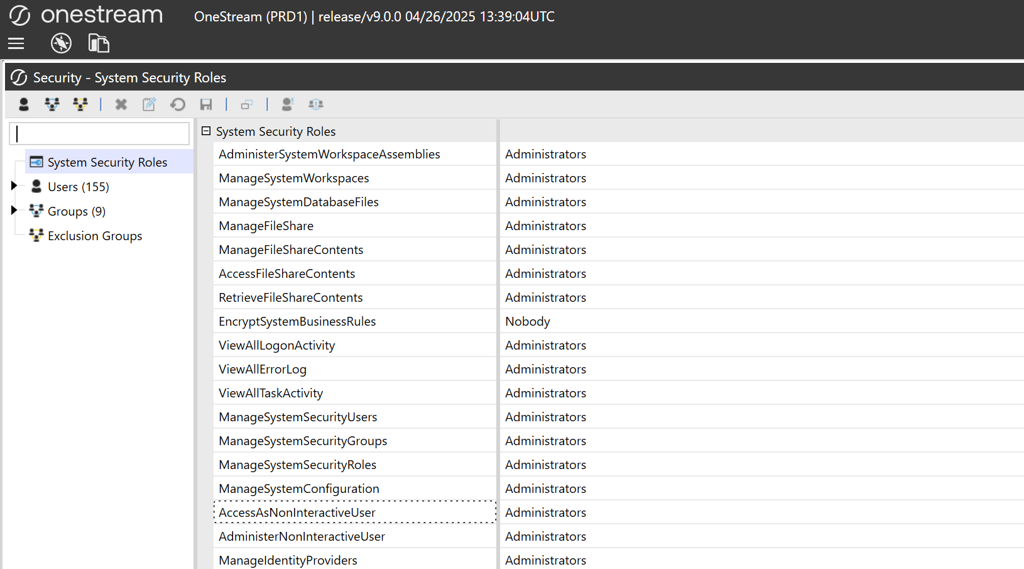
Under System Security Roles, it is important to note that if AccessAsNonInteractiveUser is set to “Nobody”, then AI Services applications will not be able to function as intended due to the inability to make proper use of Personal Access Tokens.
AccessAsNonInteractiveUser should be set to Administrators to enable usage of Personal Access Tokens within AI Services solutions.
AdministerNonInteractiveUser should be set to Administrators to enable the Manage Personal Acccess Tokens page.
Create a Personal Access Token
💡1f4a1💡#DEEBFF
Why do I need to create a Personal Access Token (PAT)?
A PAT token must be attached to the System User to enable access to OneStream Resources within AI Solutions.
PAT token setup is only for Xperiflow versions v4.0.0 - v4.1.1
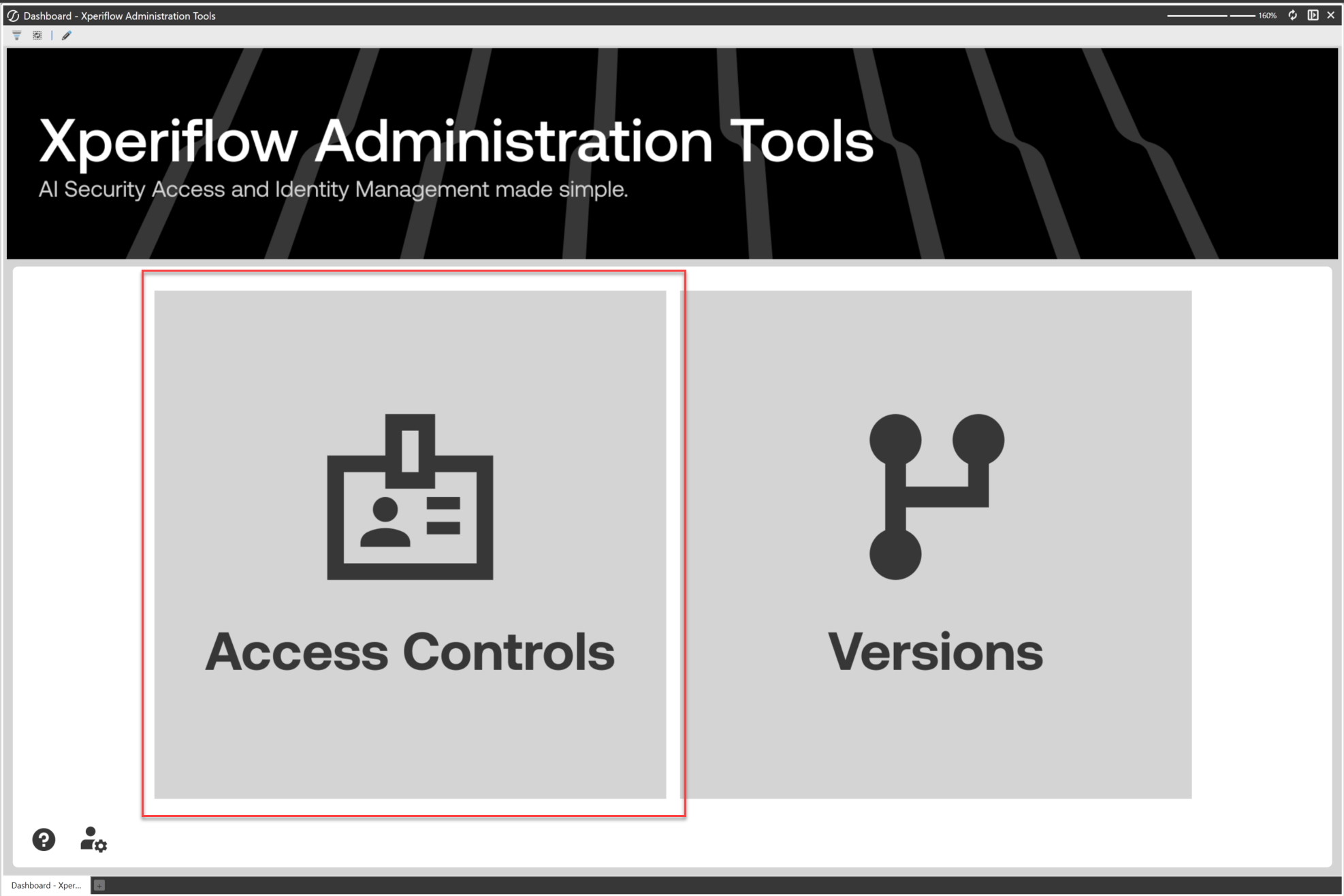
Navigate to Access Controls
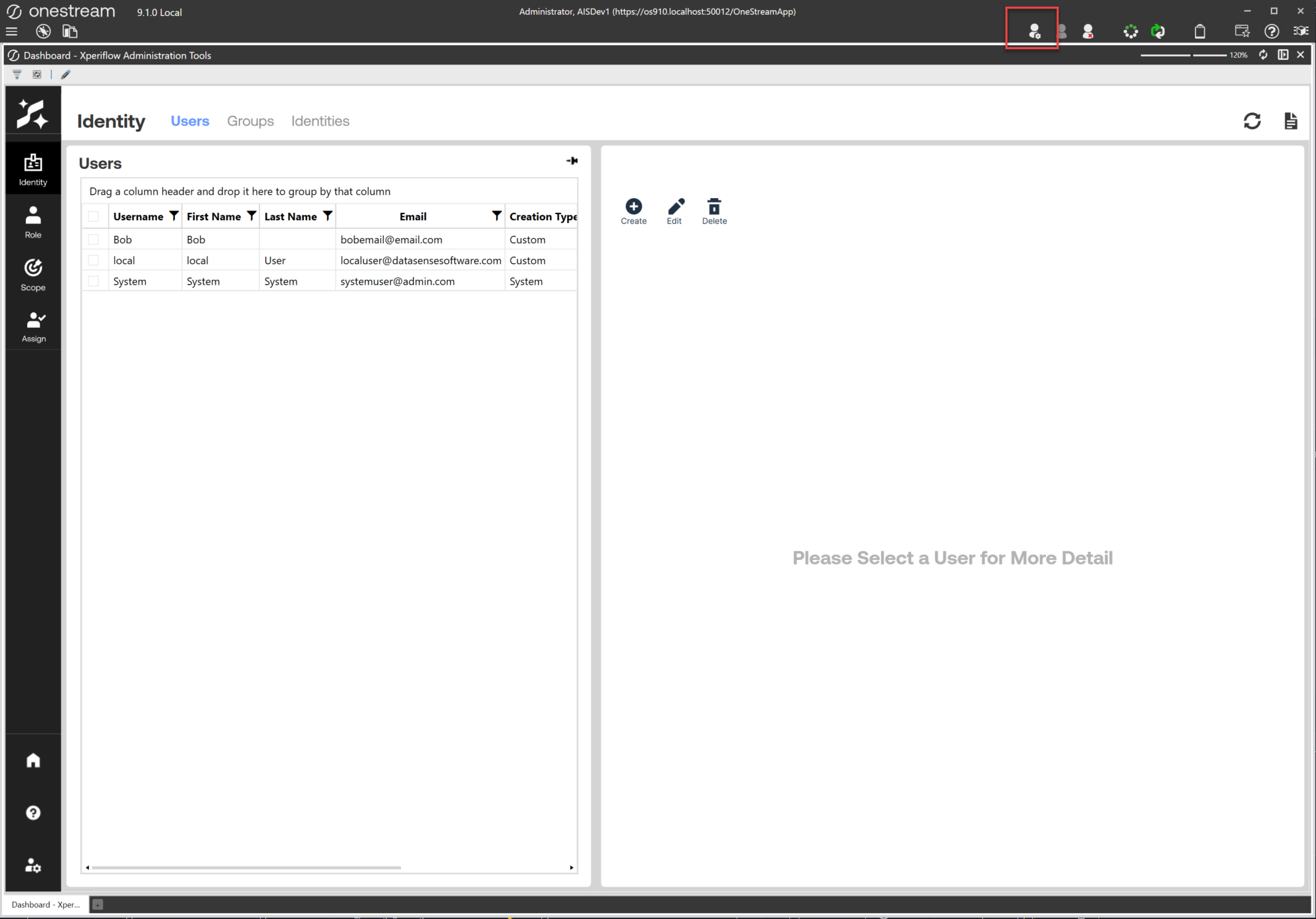
Navigate to Identity & Access Management Portal
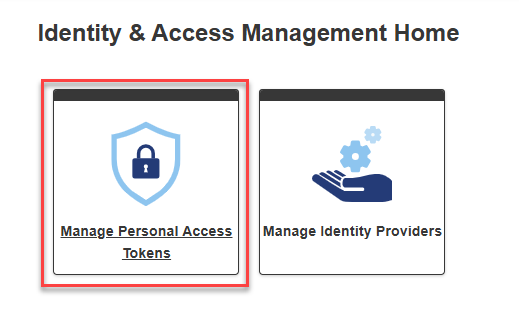
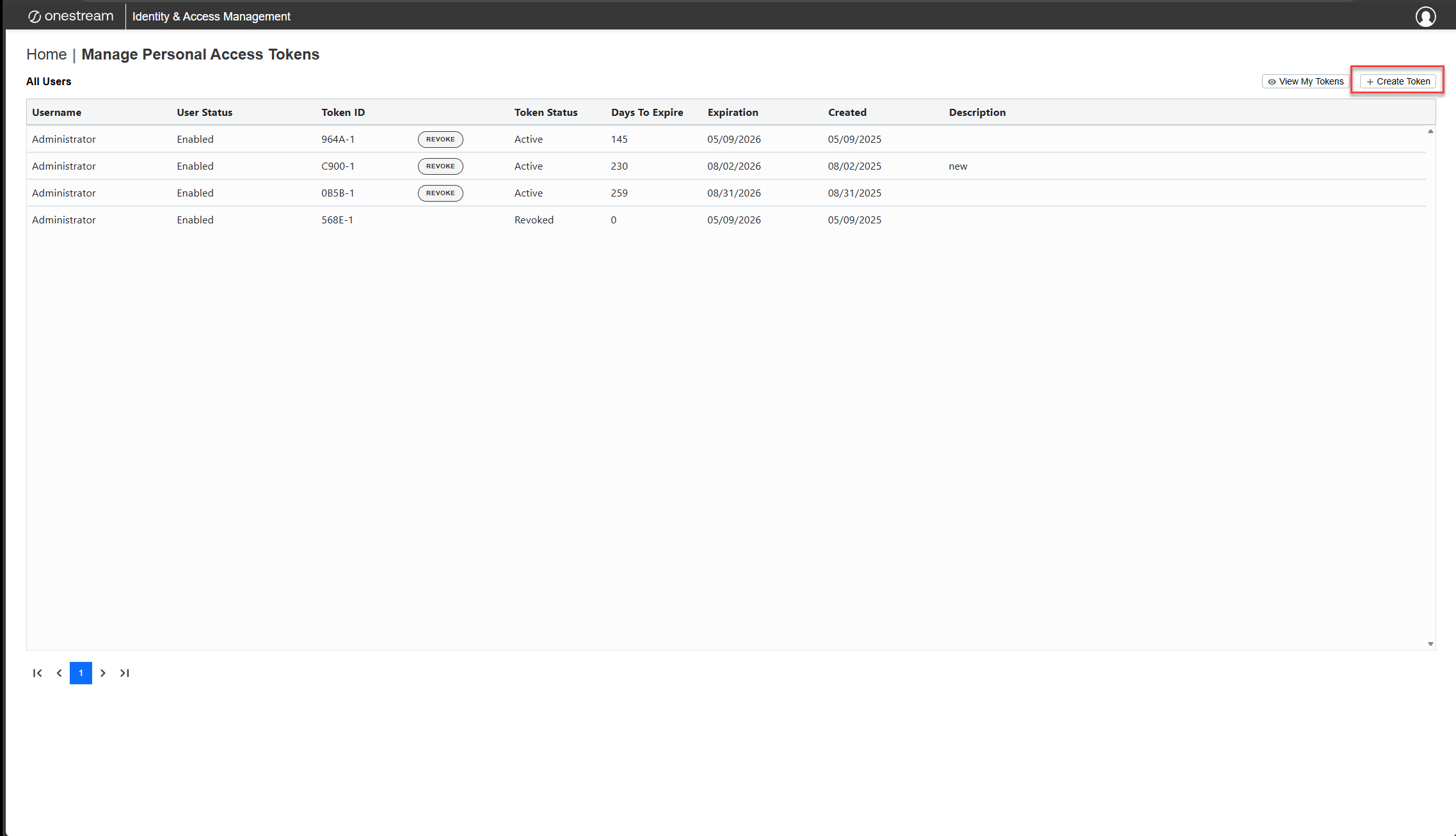
Select Manager Personal Access Tokens
Select Create Token
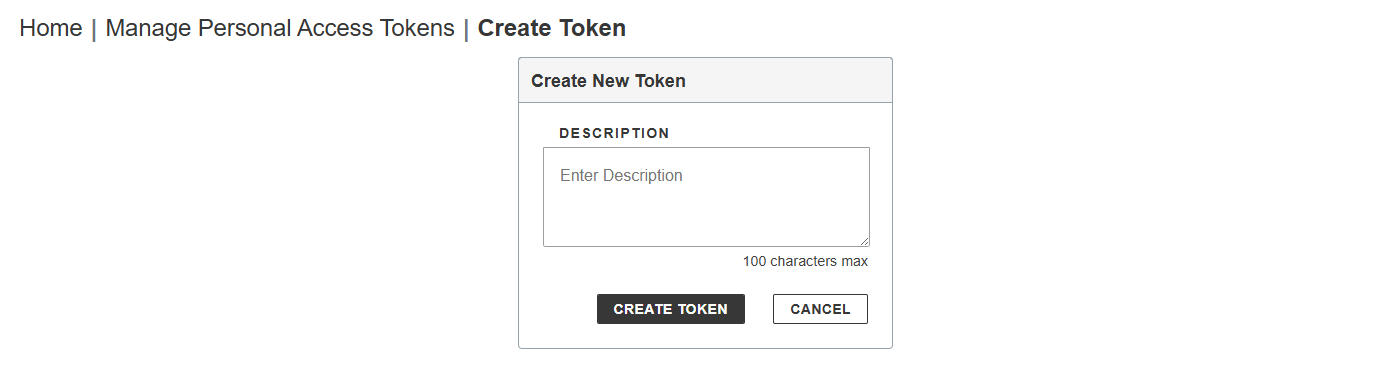
Optionally provide a description of the token and select Create Token
Copy the provided token
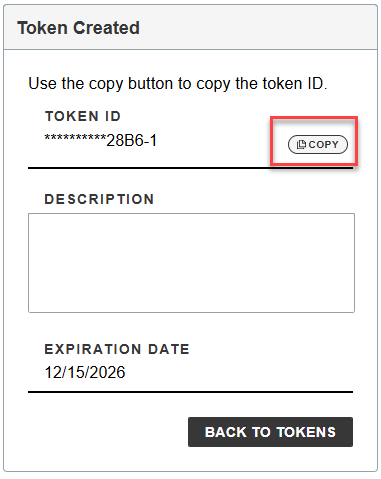
Note: Make sure to copy the token before selecting **Back To Tokens.** Once you leave this page, the token ID for the newly created token cannot be copied again.
Navigate to the Identities Page and find the System User
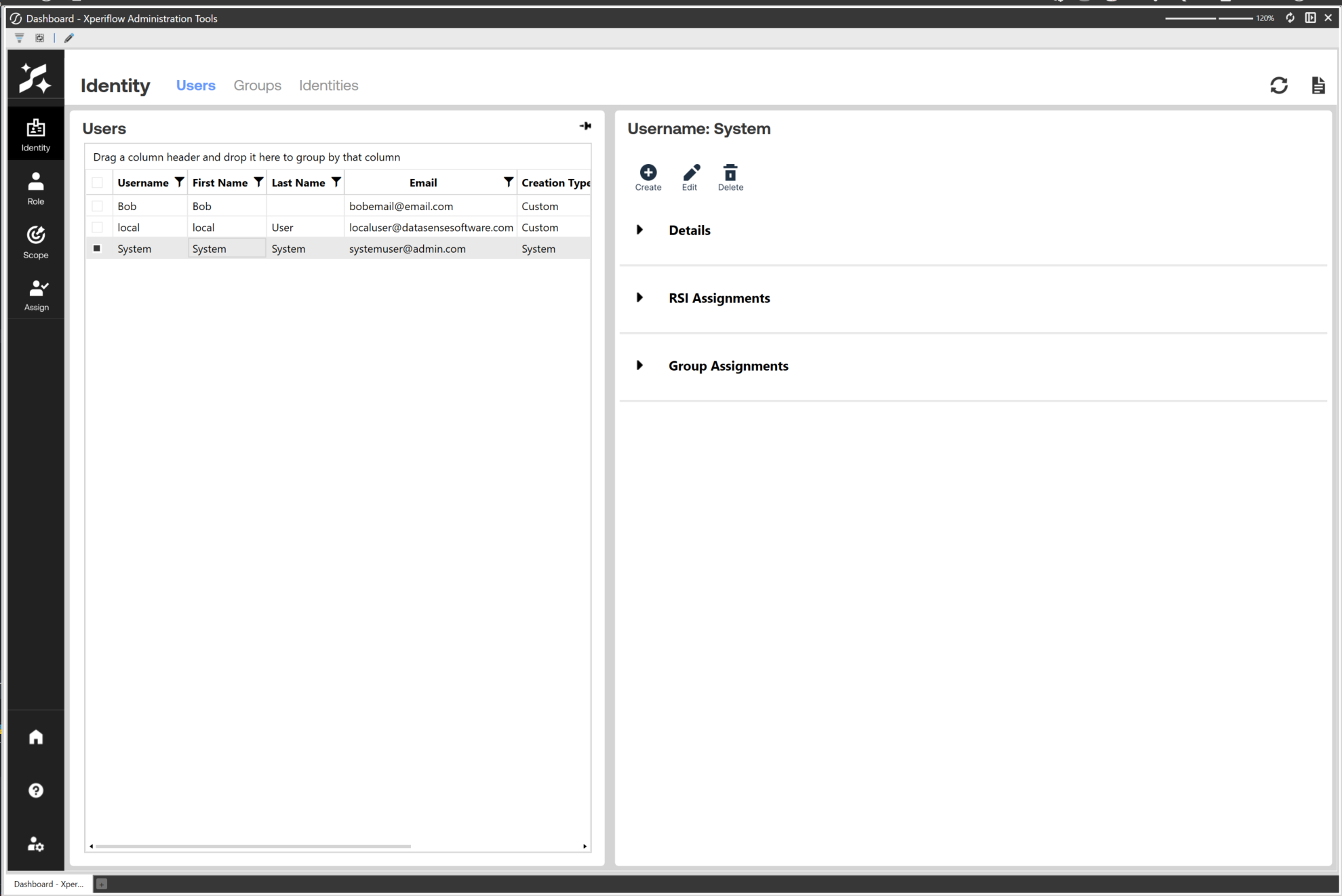
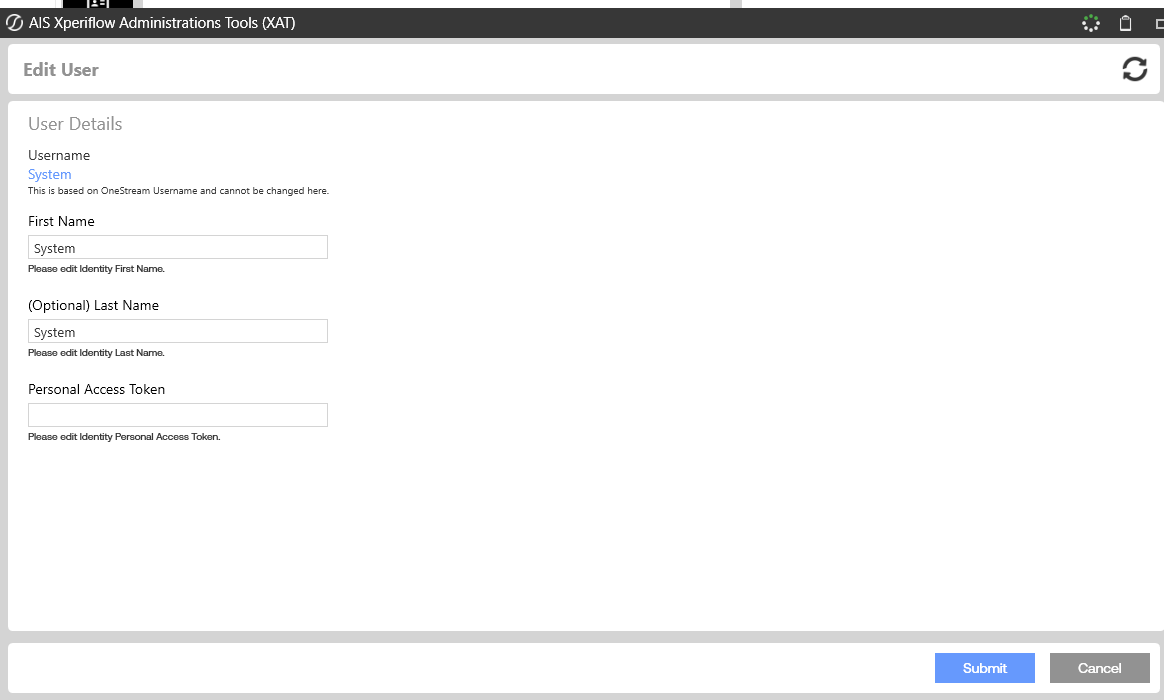
Select Edit User and paste the copied PAT token ID in the Personal Access Token Field and select Save.
 :note:atlassian-note:note:#EAE6FF
Note PAT Expiration:
Personal Access Tokens are set to expire after 1 year. So this process will be required again.