Overview
This Blueprint Configuration Guide provides a high-level walkthrough of how to assemble and configure the AI Narrative Analysis productized implementation. It outlines the essential components, required products, and configuration steps needed to deploy AI-enabled commentary summarization and variance-analysis capabilities within a OneStream application.
Disclaimer***:*** The configuration instructions included in this guide focus on the core patterns used in the majority of deployments. Because productized implementations are modular by design, each customer environment may require configuration variations based on application architecture, custom workflows, or unique reporting requirements. This guide therefore provides foundational assembly steps while assuming that implementation teams may extend or tailor components as needed.
Implementation partners and administrators should use this document in conjunction with platform documentation, Genesis block-specific guidance, and any Studio-level configuration materials to ensure proper alignment with the customer’s application design, commentary processes, and data structures.
Additionally, this guide is provided for informational purposes only and does not constitute financial, technical, or legal advice. The information contained herein is provided “as is” without representations or warranties of any kind, expressed or implied. Nothing in this document should be interpreted as a contractual commitment, statement of compliance, or a guarantee of functionality or product feature. Any use cases or forward-looking statements are illustrative only and subject to change without notice.
Implementation Requirements
Minimum Required Products
The AI Narrative Analysis Blueprint relies on a small set of core OneStream components and AI Services libraries to function as intended. These components provide the foundational capabilities for data retrieval, commentary review, parameter driven navigation, and AI-enabled summarization. The following table lists the minimum required products and versions that must be present in the environment before beginning the assembly process. All other configuration steps in this guide assume that these components are already installed and available.
Name | Version | Notes |
OneStream Platform | 9.0.0+ | Standard OneStream operating system |
Genesis | 1.0.0+ | Marketplace solution providing plug-and-play dashboarding functionality |
Cube Commentary Block | 1.00+ | Modular solution that provides users with the ability to view base-level commentary, as well as summarize and analyze variances when used in conjunction with the appropriate plugin |
AIS Plugin Cube Commentary (Optional) | 1.0.0+ | Library containing functions to AI-enable the Cube Commentary block |
Xperiflow Business Rules (Optional) | 4.1.0+ | Library containing functions to support all AI-enablement capabilities |
Required Certifications & Knowledge
Implementers should have a general working knowledge of the OneStream Platform and familiarity with standard application and workspace design patterns to ensure a smooth configuration process.
A foundational understanding of the following concepts is recommended:
- The location and structure of commentary stored within the customer application
- Basic POV management within dashboards, workflows, or workspace driven navigation
- Standard Genesis concepts, including parameters, block properties, and page level configuration
- How data is retrieved and displayed through Cube Views, BI Viewer components, or other visualization blocks when used alongside the Cube Commentary block
These competencies enable implementation teams to make informed configuration decisions, adapt the layout to customer specific requirements, and correctly align the blueprint with existing reporting and workflow processes.
No formal certifications are required to assemble or deploy the AI Narrative Analysis Blueprint.
Blueprint Assembly
Genesis Framework Setup
The AI Narrative Analysis Blueprint is assembled within a Genesis-based dashboard experience. Before assembling the blueprint components, implementers must first establish the Genesis structure in which the framework will reside.
This begins by creating a Navigation Group within the Genesis instance, either dedicated solely to AI Narrative Analysis or to include other existing pages. Within this Navigation Group, create a new Page that will serve as the container for the Dashboard Layouts block and all injected child blocks used throughout the blueprint. This page becomes the primary workspace for end users and can function as the standalone landing experience for the blueprint or as one page within a broader collection of Genesis driven reporting and analysis pages. Once created, the page provides the foundation on which the remainder of the assembly process is built.
Genesis Block Injection
With the Genesis page framework established, the next step is to begin injecting the blocks that will bring the AI Narrative Analysis Blueprint to life.
Advanced Dashboard Layouts Block
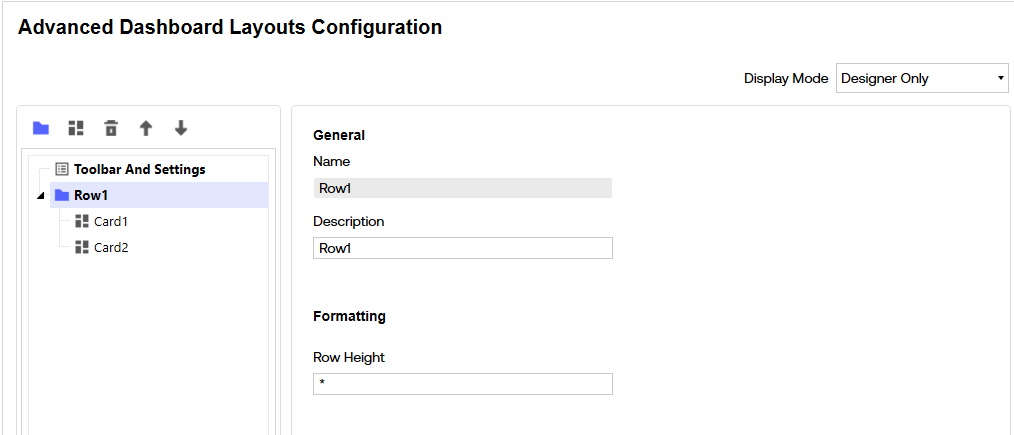
The first block to add is the Advanced Dashboard Layouts block. The Advanced Dashboard Layouts block supports flexible grid-based layouts, giving implementers the ability to place commentary tools, member selectors, and visual analytics components in a clear and organized page design.
After the Advanced Dashboard Layouts block has been added, it becomes the anchor point for injecting all other Genesis blocks required for the blueprint. These blocks will be positioned inside the above layout and will collectively deliver the complete AI Narrative Analysis experience. Therefore, add as many rows and cards as best fits the use case at hand.
Cube Commentary Block
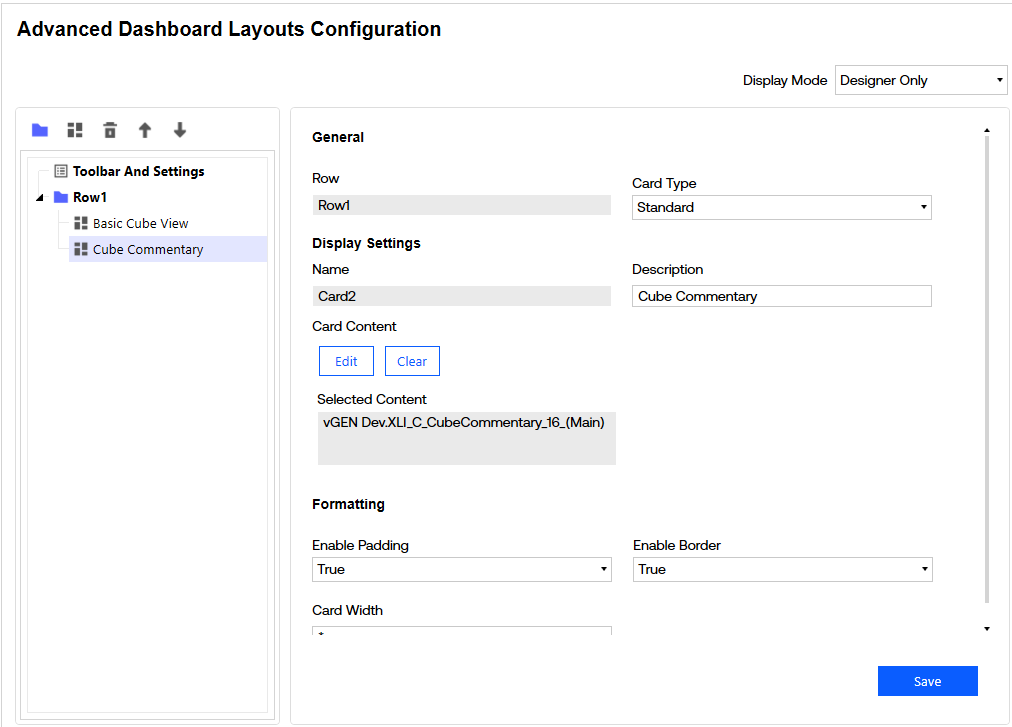
With the layout framework established, the next step is to inject the Cube Commentary block. This is the block that enables users to review base-level commentary, generate narrative summaries, and incorporate variance details.
Select ‘Add’ in one of the cards of the Advanced Dashboard Layouts block and select the Cube Commentary block from the library.
Visualization Block
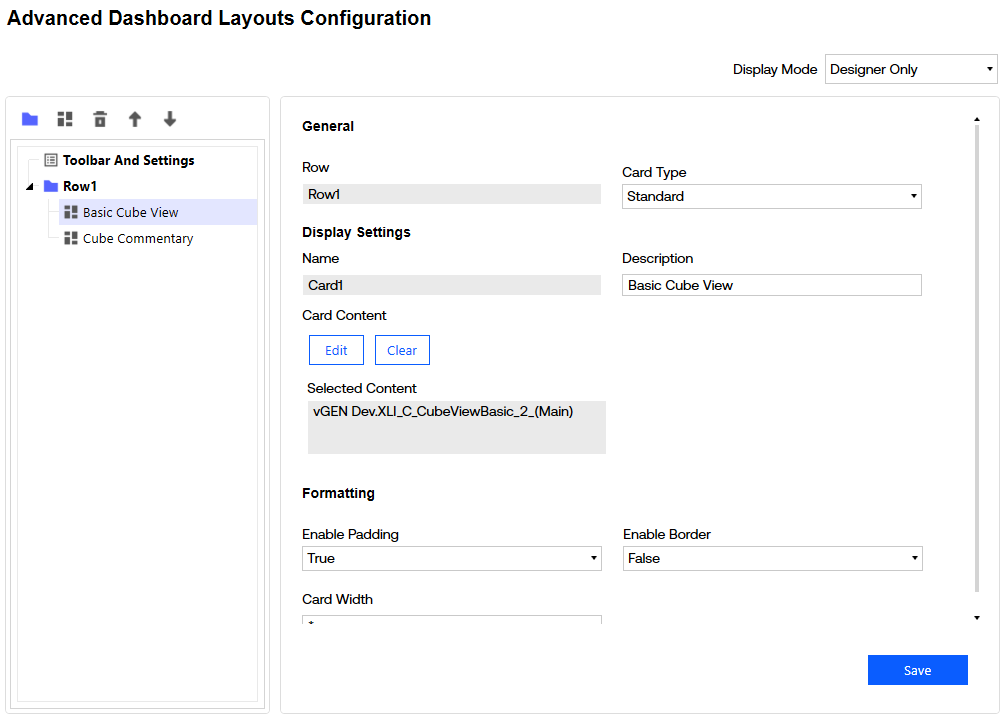
In addition to the Cube Commentary block, implementers should inject at least one visualization-oriented block to help contextualize the commentary being summarized. Select ‘Add’ in one of the other cards of the Advanced Dashboard Layouts block and select the appropriate block from the library. Which block to utilize depends on the use case and how the customer would like to see the numbers associated with their commentary.
Common options include:
- Advanced/Basic Cube View – to display a Cube View for grid-based data exploration
- Cube View Charts – to display charts to visualize variances, KPIs, and trends
- BI Viewer – for interactive BI Viewer integration
- KPI Layouts – to display key KPIs as configurable tiles
These visual components are not required for functional operation, but they significantly enhance usability by giving users an immediate view of the data being summarized.
Continue adding as many blocks as necessary to fulfill the requirements of the use case.
Toolbar Block (Optional)
An optional addition to the page is a Toolbar at the top that displays a title and buttons and/or filters. To incorporate this, select the Toolbar and Settings section of the Advanced Dashboard Layouts block and toggle the mode to Tool Bar. This toggle presents the option to add a content block, such as Toolbar Embedded.
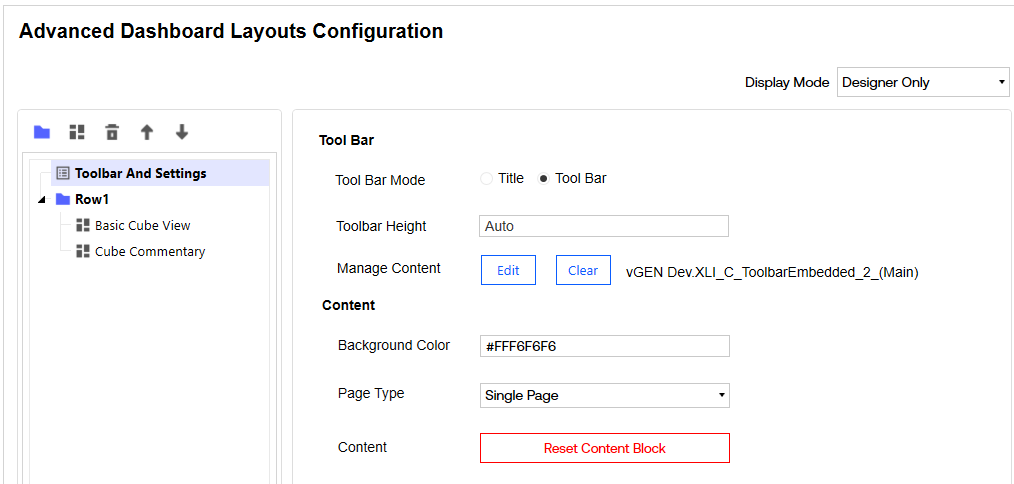
If the requirements state that there should be the option to utilize parameters for dynamic member selection, we need to ensure there is a filter that captures that capability. Click ‘edit’ next to the injected Toolbar block to add the appropriate components (see the below section regarding Connection Blocks Together for additional information).
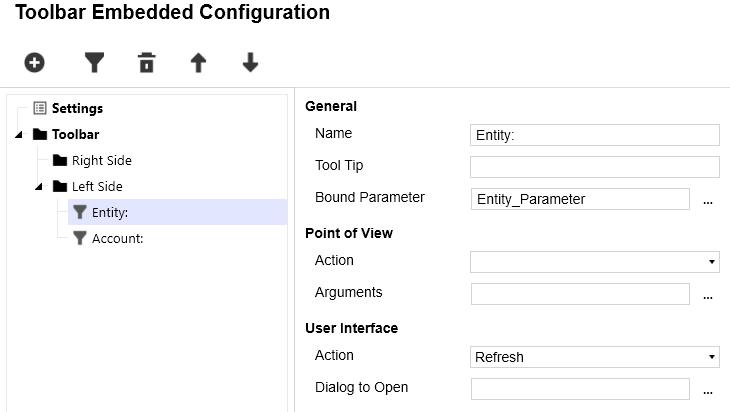
Recommendation: Ensure you give the page a proper name by selecting the “Settings” section of the Toolbar Embedded block and adding an appropriate title.
Block Configuration(s)
After all necessary blocks have been injected, each block must be configured individually according to their respective requirements and the relative target use case.
To begin configuration, select ‘Edit’ next to any of the blocks.
Configuration typically includes:
- Setting required parameters or components for data retrieval
- Designating the intersections relevant to data or commentary input
- Enabling the appropriate settings to achieve all required functionality
Recommendation: Modify the Height and Width of each relative block in the page to make all blocks fit appropriate for user-friendly display purposes.
Each block requires unique configuration. Follow the steps and complete all required fields for each block.
*For more information on specific settings and features for each block, please refer to the appropriate documentation provided alongside the product download in OneStream’s Marketplace.*
Connecting Blocks Together
Blocks presented within a single page are not inherently connected. To allow blocks inside the Dashboard Layouts framework to “communicate,” implementers must define one or more shared parameters. By integrating the same parameters on each block, we allow multiple blocks to reference the same POV, selection values, or user-provided inputs to create that inherent connection. To do so:
- Navigate to the appropriate Genesis Workspace in the Workspaces page of your application.
- Find or create a parameter that contains the metadata you would like to drive a certain functionality or point of view dimension member.
- In the settings of your Cube Commentary block, reference that parameter in the location you would like to be user-driven (for example, in place of your Entity member).
- In the appropriate peripheral block (such as the Toolbar or Cube View block), reference that same parameter in a similar fashion (for example, in the Entity member field of your Cube View or in the Bound Parameter field of a filter in your Toolbar).
Recommendations: Ensure the toolbar block within your Blueprint has the capability to refresh the user interface. This ensures the appropriate parameter selection is being referenced by all blocks at all times.
Once aligned, all injected blocks will update in response to user selections, enabling seamless navigation and synchronized interaction between commentary, data views, and visuals.
Data Security
The AI Narrative Analysis Blueprint inherits standard OneStream Platform security. No additional roles, groups, or security rules are required.
Access to the Cube Commentary block and all peripheral blocks is governed by the user’s standard workflow and/or workspace and dashboard access rights. Customers who have access to the appropriate data and pages will automatically be able to generate summaries.
Deployment & Workflow Integration
Once the dashboard and supporting blocks are configured, the final step is to deploy the blueprint into end-user workflows. Implementers can choose between two primary deployment models:
Embedding in an Existing Workflow
The landing page or dashboard can be inserted as a Workspace Step within any existing workflow. To do so:
- Navigate to the Workflow Profiles page in the Application tab.
- Find the Workflow profile step AI Narrative Analysis needs to be surfaced on.
- Set the Workflow Name to one that contains “Workspace”.
- In the “Workspace Dashboard Name” field, select the Genesis Navigation dashboard, or the specific Genesis page dashboard that contains the Blueprint configuration.
Recommendation: Utilize workflow parameters where appropriate when defining Point of View (example: T#|WFTime|).
Recommendation: If the workflow needs to be marked as complete, ensure you integrate a Toolbar block into Dashboard Layouts block and include “Complete Workflow” and “Revert Workflow” buttons.
Deploying as a Standalone Solution
Alternatively, the blueprint can exist independently outside workflow, accessed through a dashboard group in OnePlace. To do so:
- Create a new Dashboard Profile called “AI Narrative Analysis”.
- Add the Dashboard Group that contains the dashboard you built and configured for AI Narrative Analysis.
Recommendation: To give the solution a more user-friendly display name in OnePlace, navigate to the dashboard group you assigned to your profile and give the associated dashboard a description. This description is what will display as the name.
Both deployment models are equally supported and require minimal configuration.
This completes the configuration steps required to assemble the AI Narrative Analysis Blueprint. Once deployed, the solution is ready for use in reporting, analysis, and workflow driven commentary processes.
Appendix
Definitions
AI Narrative Analysis
AI Narrative Analysis is a Productized Implementation Blueprint developed to allow users to convert base-level financial commentary into clear, actionable summaries at any level of the reporting hierarchy. By incorporating variance data, it helps both end users and business leaders quickly identify and prioritize the drivers that matter most for informed decision-making. With built-in multilingual support, global teams can efficiently summarize and translate commentary across diverse financial segments. By integrating this capability directly into existing workflow processes, the tool streamlines analysis and helps organizations meet their reporting requirements more effectively.
Productized Implementation
A collection of modular, reusable building blocks that can be snapped together with the Genesis plug-and-play architecture to deliver a complete AI use case. Rather than building custom solutions from scratch each time, teams can use purpose-built Genesis blocks, paired with AI routines from SensibleAI Studio, to make implementations faster, more consistent, and easier to scale.
Sample Prompts
Prompt | |
1 | "Summarize the key messages in my commentary and highlight the primary business drivers that explain the change in results for the selected period." |
2 | "Provide a clear and concise summary of the commentary with an emphasis on the variances that had the greatest impact on performance.” |
3 | "Create an executive level summary based on the commentary provided. Focus on the most important insights that leadership should be aware of and remove unnecessary detail." |
4 | "Summarize the commentary by identifying the top contributors to performance for the period. Include both operational and financial factors where relevant." |
5 | "Consolidate the commentary across all included entities and produce a unified summary that highlights shared themes, significant trends, and any differences that are important to note." |
Troubleshooting
Missing Commentary Data
If you are seeing in the subtitle that there are “0 total” comments being summarized, or if you are receiving the following AI Summary response: “The dataset contains no commentary information to summarize.”, then your Member Script and/or Aggregation Filters in your Cube Commentary block settings are not pointing to any intersections that contain commentary data.
To validate and remediate this:
- Create a Quick View in the Spreadsheet page or the OneStream Excel Add-in.
- Set your Quick View POV members to the members that you have defined in your Member Script.
- Drag the dimensions you have defined in your Aggregation Filters into your Rows/Columns and paste in the members and expansions.
- If you do not see any comments populating in the Quick View. Either:
- Modify your POV members and/or the members, expansions, or dimensions defined in your rows and columns to find the correct data.
OR
- Comments have not been submitted to the appropriate intersections yet. Contact the OneStream Administrator for more information.
- Once comments are displaying in the Quick View based on one of the previous steps:
- Transfer the modifications you made to your POV to your block’s member script.
- Transfer the modifications you made to your rows and column expansions to your Aggregation Filters.
Prompting Issues
If you receive the following AI Summary response: “This question is out of scope for the purposes of this solution. Please rephrase your comment or question and ensure it is in relation to financial data or commentary.”, then the user input does not meet the scoping rules that govern how the solution processes prompts.
To ensure the tool is used as intended, a filter evaluates each user submitted question before processing. Make sure your question aligns with one of the following categories:
- Relates to financial performance, budgeting, forecasting, accounting, variance analysis, or commentary.
- Requests a summary, interpretation, or explanation of the provided dataset or commentary.
- Involves general financial analysis aligned with the context of the underlying data.
If you believe your question was blocked incorrectly, please open a bug ticket or product enhancement request through the appropriate support channel.